Bulk Updating Products
When you want to make a lot of changes, such as editing your minimum and preferred prices, or adding products to or removing them from the buybox tracker, you can do so using CSV files
Format Requirements
- Ensure the file is in the
.csv(comma separated values) format before you upload it - Ensure the CSV file is exported as comma-delimited, not semi-colon or tab-spaced
- Ensure the CSV file contains at least these columns (case-sensitivity and spelling is important):
tal_tsinORtal_offer_idmin_pricemax_priceenable_auto_pricetal_auto_price_frequency- (you can have more columns, but these must be present)
TIP
The track_buybox column is no longer used during CSV imports, instead only enable_auto_price is now used to toggle both tracking and auto-pricing simultaneously.
Which values can I bulk update?
For each product, you can update these columns (fields):
| Column | Possible values | Description |
|---|---|---|
| min_price | Any number equal to or bigger than 0 | The minimum price that the auto-pricing will change to |
| max_price | Any number equal to or bigger than 0 | The maximum price that the auto-pricing will try to reach while still winning the buybox |
| enable_auto_price | 'yes' or 'no' | Whether or not auto-pricing is enabled for this product |
| tal_auto_price_frequency | One of these values: standard_frequency, medium_frequency, high_frequency | Which auto-pricing frequency tracker to assign to this product |
1. Export the products as a CSV file
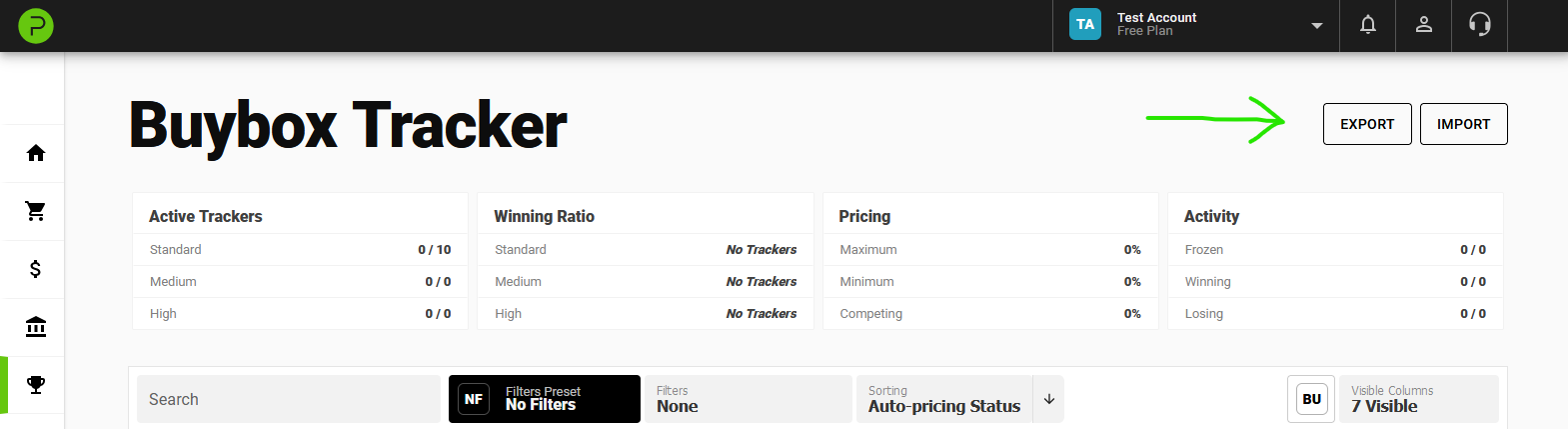
1.1 Navigate to the Products or Buybox Tracker page and click the Export button at the top right:
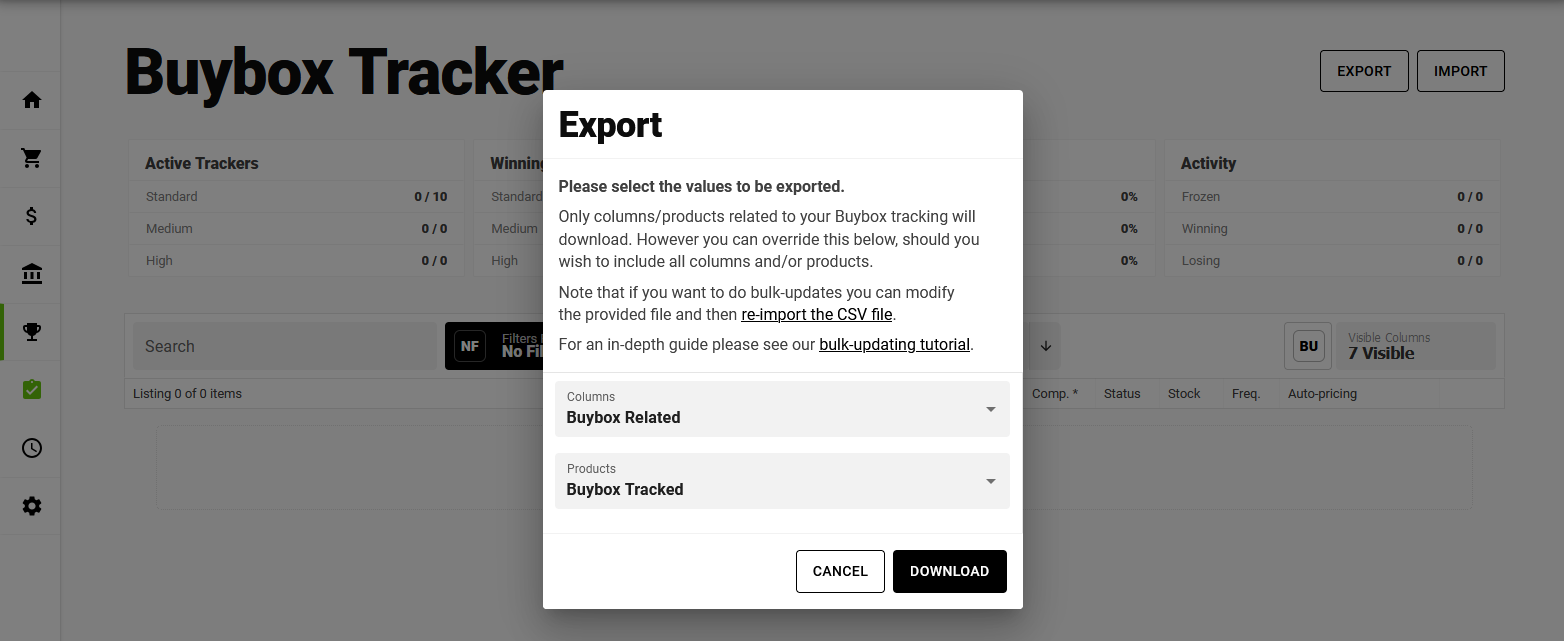
1.2 Select the export options and download the file
We recommend selecting these options to reduce the file-size and make it easier to focus on the right columns:
- Only export columns and products related to buybox
- Export all columns and products
Then, click Download
2. Edit the CSV file
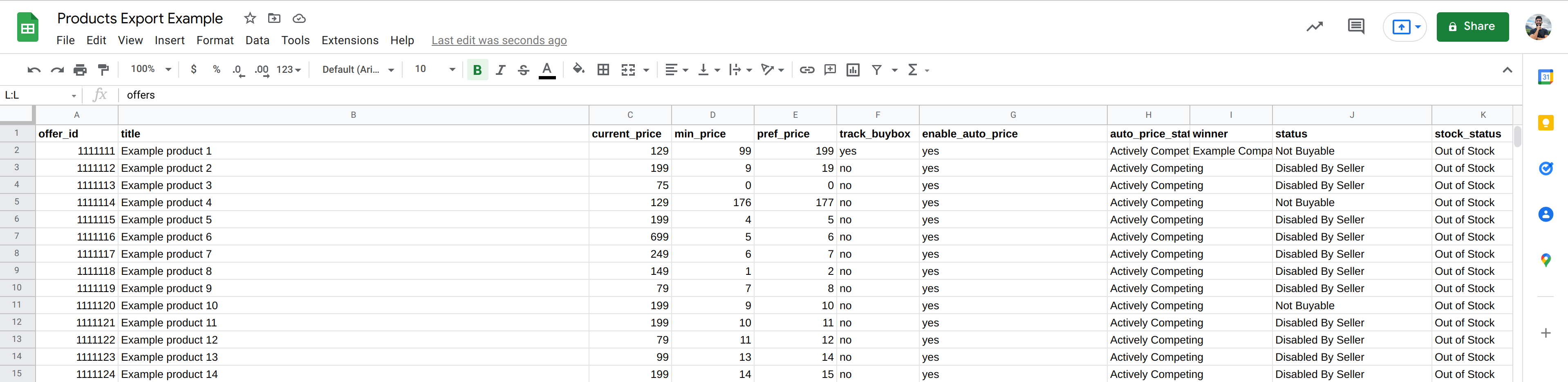
Open the CSV file you downloaded in the previous step with an editor of your choice.
If you don't have an editor, a great free option is Google Sheets.
You can now edit the min_price, max_price, tal_auto_price_frequency and enable_auto_price columns for each offer. Consult the table above for details about these fields.
When you're done, make sure to save the file as the CSV (Comma Separated Values) format, otherwise it won't work when you import it.
3. Import the edited CSV file
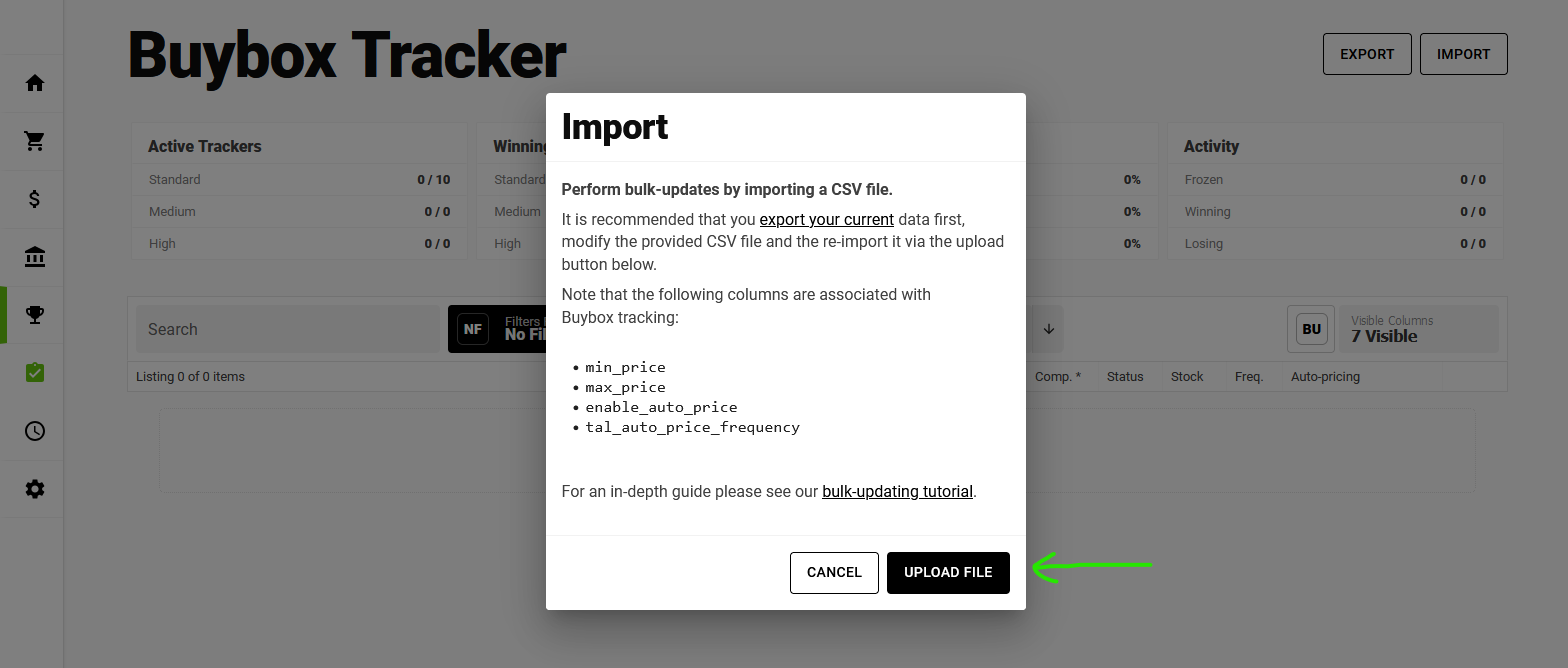
3.1 Click the Import button, and then click the Upload File button.
Navigate to where you saved your edited CSV file on your computer, and select it for upload.
3.2 Processing your file
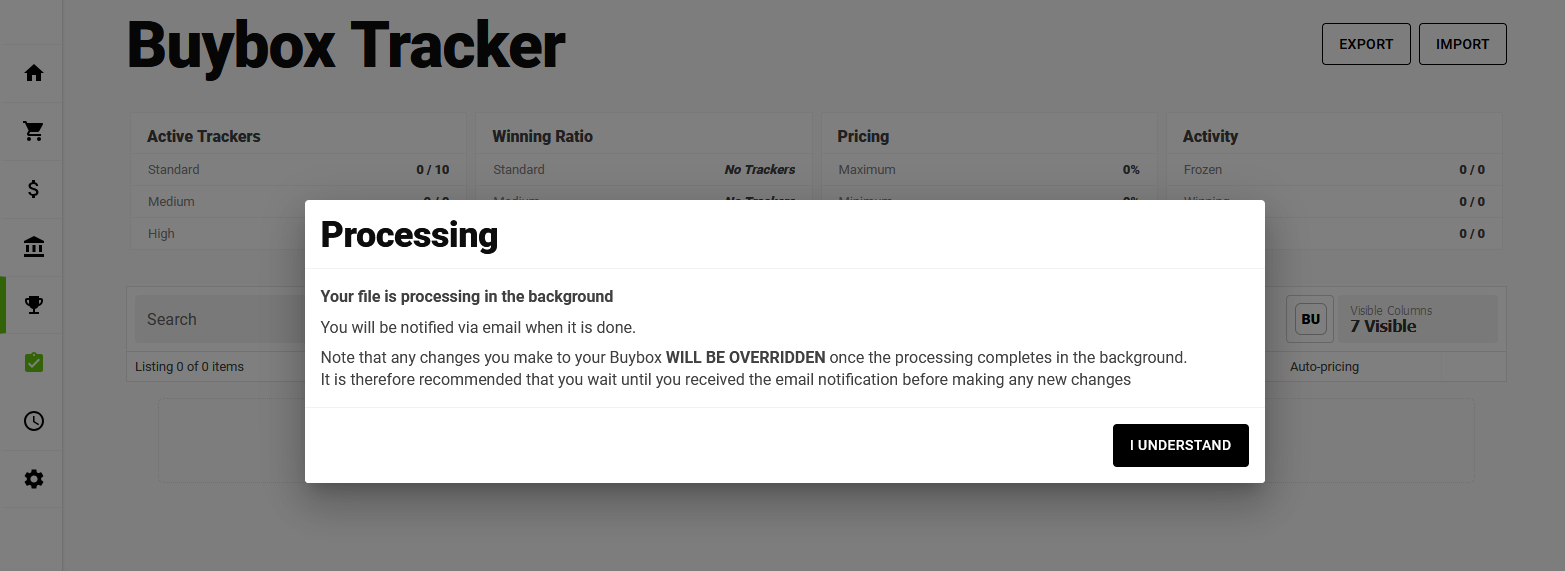
Now your file has been uploaded. Note that the file is currently being processed in the background, which means that your changes will not show up immediately.
It is important to note that that any changes you make to the data now will be overridden once the file is processed.
It is therefore recommended to not change your buybox information until the changes are applied. You will receive a confirmation email from Palmetrics once the changes are applied.
The email will look similar to this: