
How to enable repricing (auto-pricing)
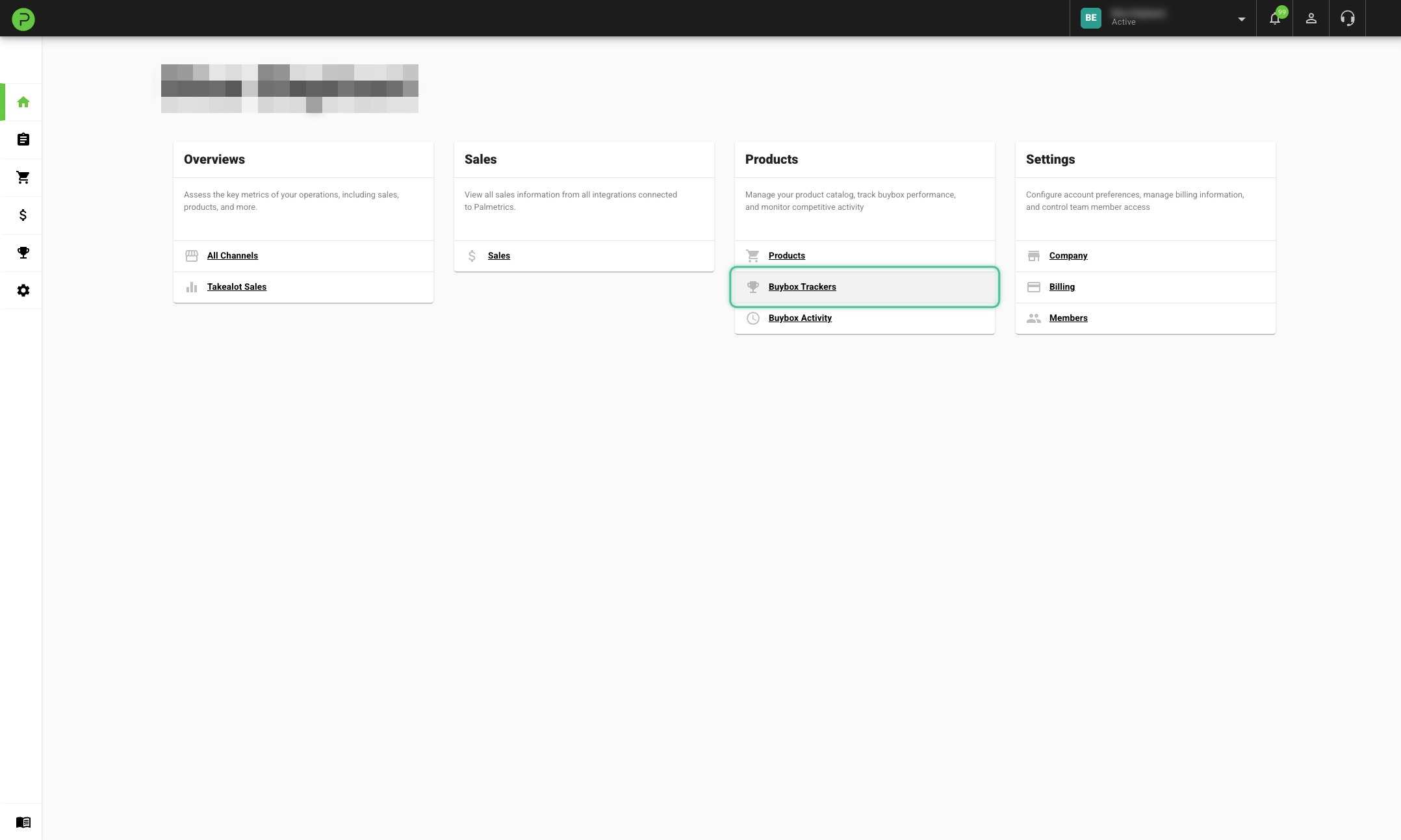
1. Click on Buybox Trackers
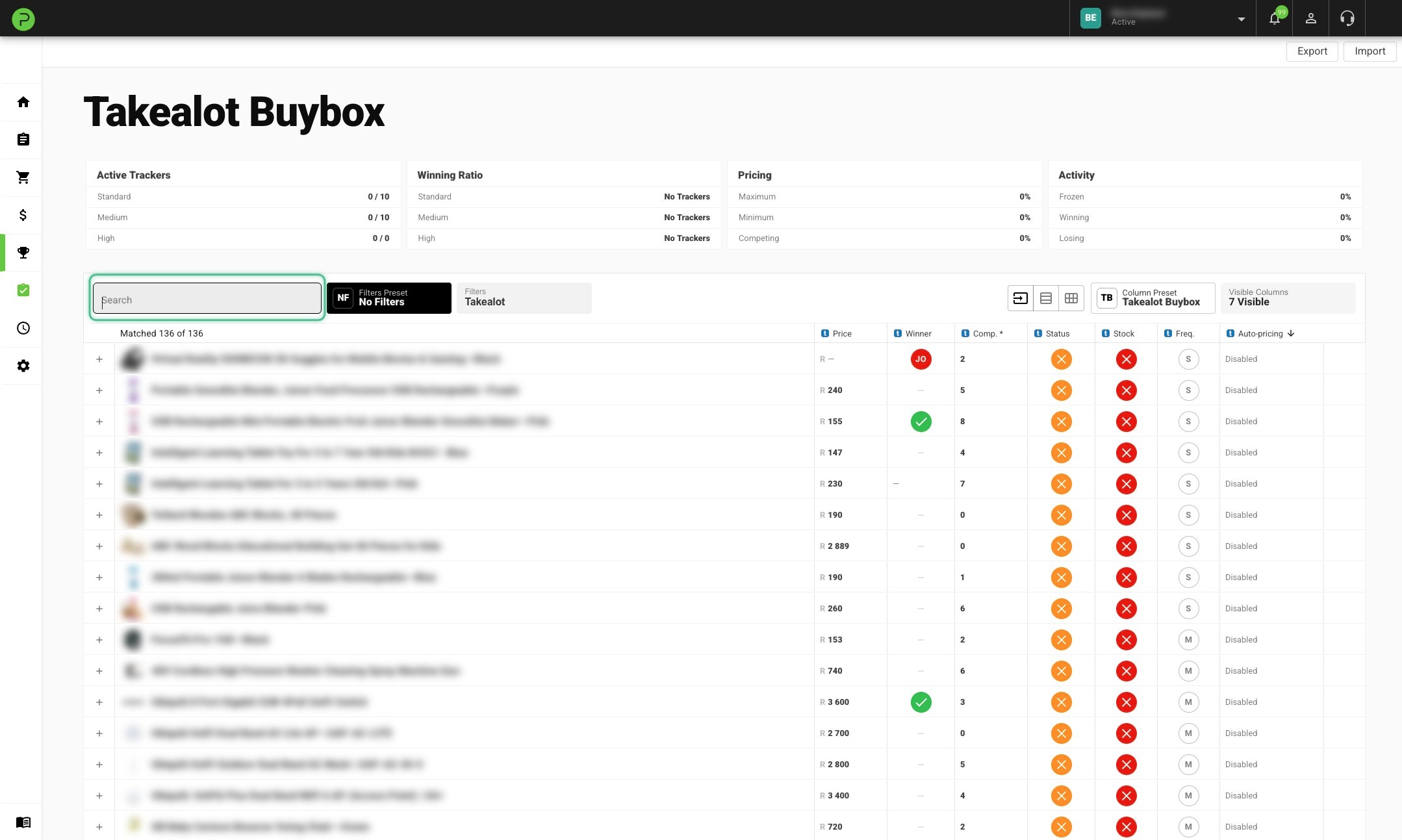
2. Search for a product you'd like to auto-price
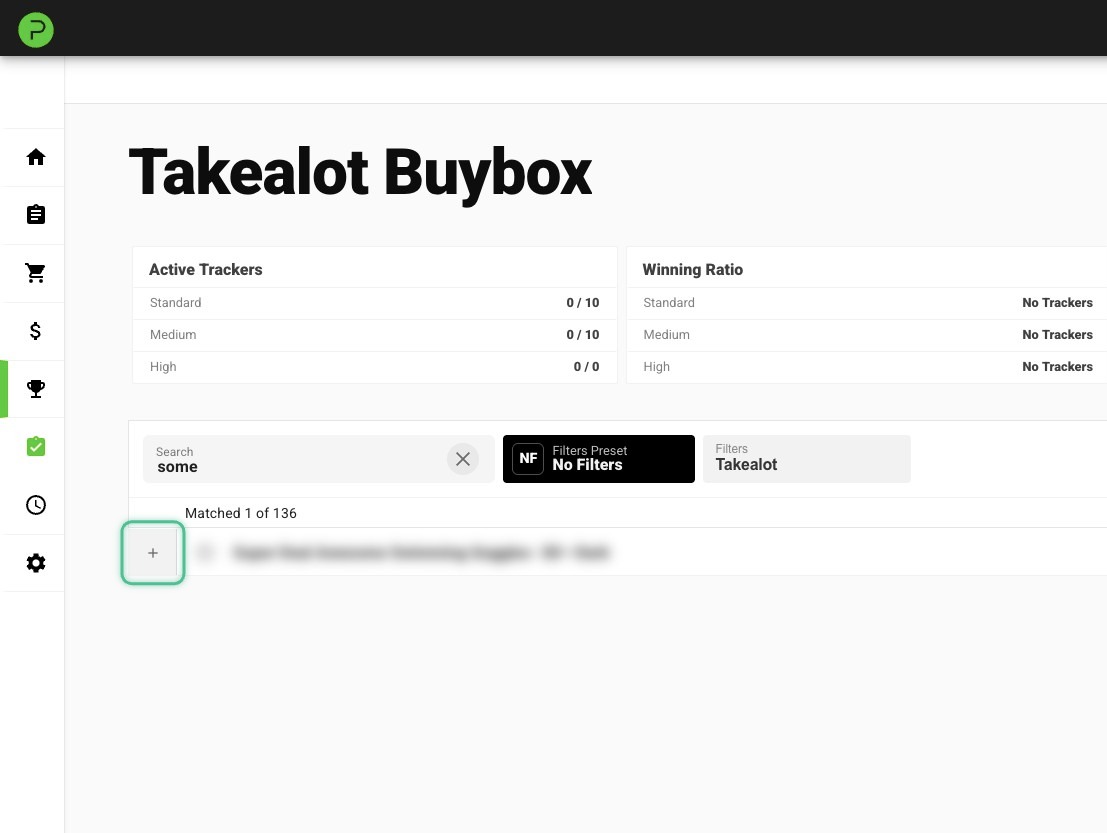
3. Click the + icon to the left of the product
4. Enter a minimum price
This is the lowest price that your product will sell for
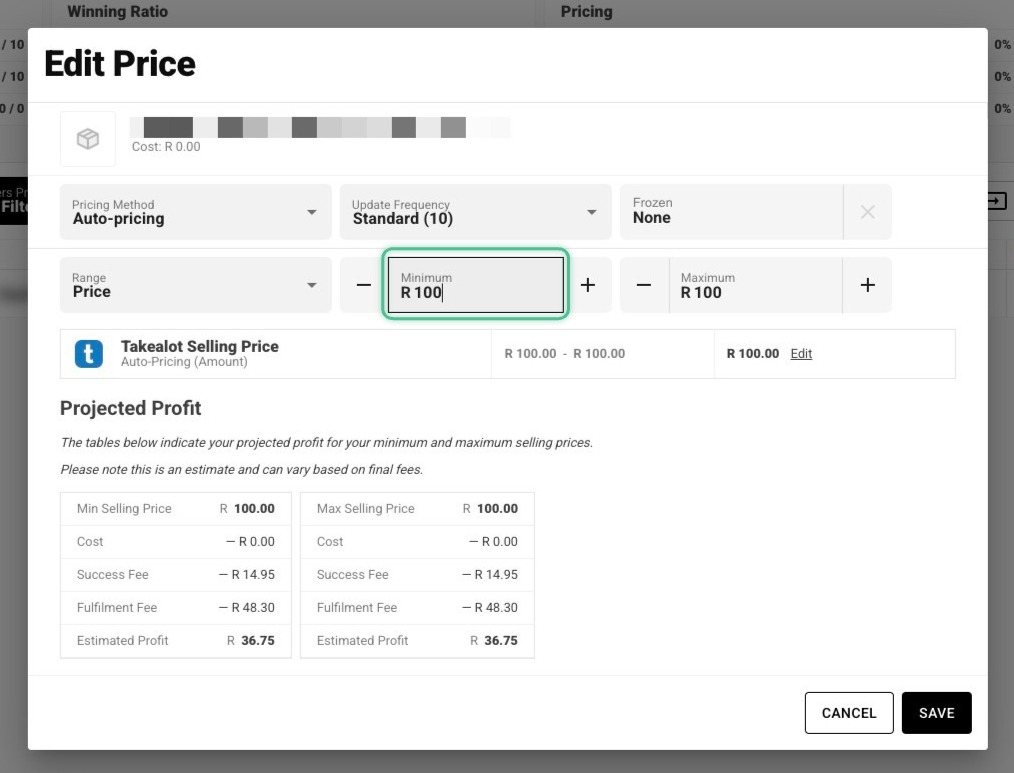
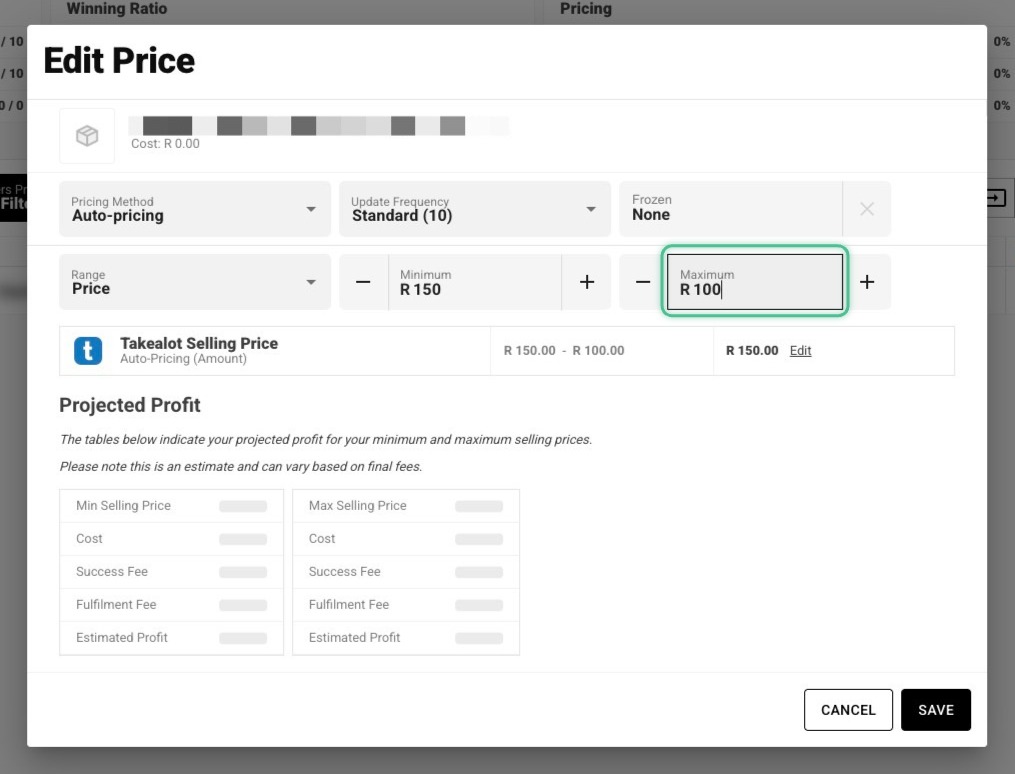
5. Enter a maximum price
This is the highest price that your product will sell for
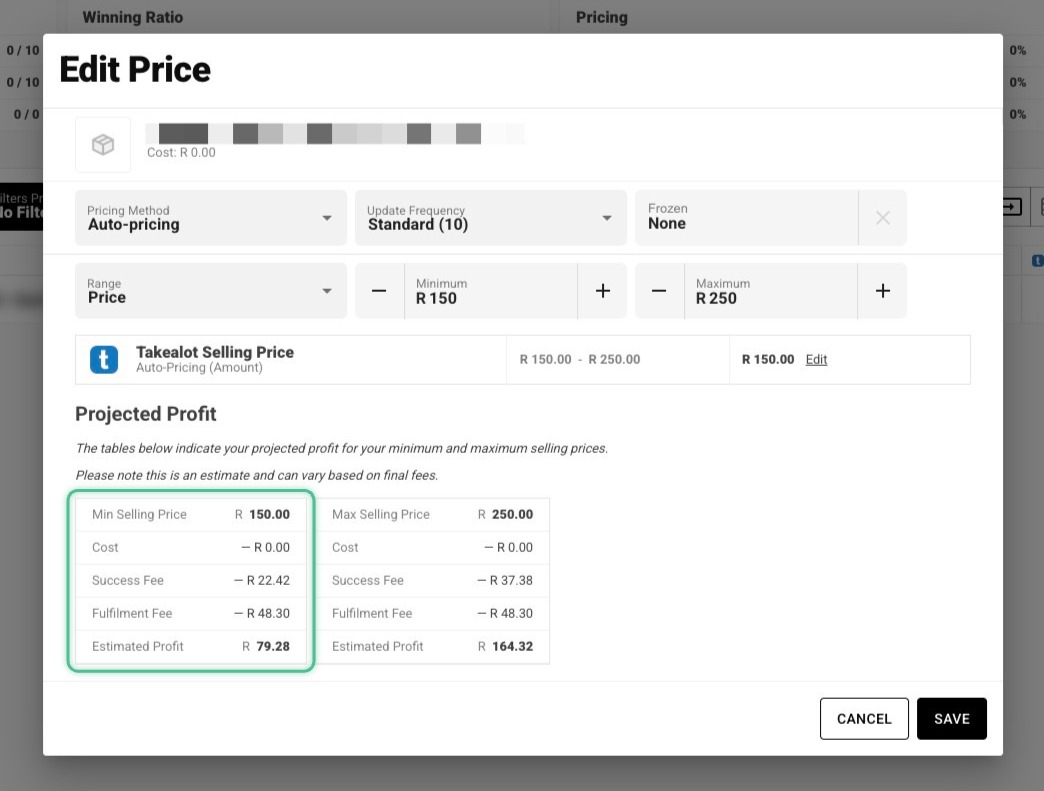
6. Review the minimum and maximum projected profit
TIP
These figures are more accurate if you add your product costs
7. Click Save

8. Notice that you're now using 1 of your Standard trackers

Your product will now start auto-pricing within the min/max range you set. It can take up to 20 minutes (if using the default Standard Frequency) for it to show the buybox status on Palmetrics and make the first price change.
There are a lot more features available
We just covered the most basic setup, but there are a lot more features available to customise your experience.
Price change history
You can see the price change history for all your auto-priced products by going to the Activity tab on the left-hand navigation (under Buybox Tracker). You can search on this page to narrow it down to one or more products.
To see the price change history for just one product, click on the product from the Takealot Buybox and then click on View Activity near the bottom of the window that pops up.
Faster frequencies
The default setting is Standard Frequency which will check if a price change is necessary every 20 minutes. You can increase this frequency to every 10 minutes (Medium Frequency) or every 6 minutes (High Frequency). You need to purchase the relevant trackers to be able to use them on products. The trial only includes 100 Standard Frequency trackers, so if you'd like to use a faster frequency, you'll need to purchase faster frequencies on the Billing page.
Markup-based repricing
You can also set a min and max markup percentage based on your cost, instead of fixed Rand values. This allows you to set a fixed percentage range, e.g. 20% - 40% added onto your cost. When the product cost changes, this will automatically adjust the Rand value of your min and max to keep your profit margins the same. To use this feature, add a cost for the product and then change the Range option to Markup and enter the min and max percentage.
Freeze Price Changes
Sometimes you want to pause auto price changes for a short time without disabling and re-enabling auto-pricing. Maybe because you don't want to compete with a competitor and let them sell out, or some other reason. In these situations, you can click the Frozen box when viewing a product on the Takealot Buybox and select the date/time when you want it to resume price changes again.
Fastest Delivery Buybox (Global)
When you're the only in-stock offer on a listing, you can have the most expensive price and still win the "Fastest Delivery" buybox. Configure how much more expensive you'd like to be compared to the cheapest lead-time competitor by entering a percentage.
This setting is applied globally to all products and can be configured on the Settings page.
Minimum Price Reset (Global)
Your products can automatically reset to the max price and apply a temporary price change freeze whenever they reach their minimum price. This is useful when you want to increase profits and regain opportunities to win the buybox if your competitors minimum is below yours, because your competitors might also increase their price to just below your max which resets the cycle from the top.
This setting is applied globally to all products and can be configured on the Settings page.
Daily Price Reset (Global)
Your products can automatically reset to the max price and apply a two-hour price change freeze early in the morning, every day. This opens the possibility that you and your competitors can reset your bidding cycle from the top at the start of each day, increasing profits. This reset happens early when very few customers are purchasing on Takealot, minimising lost sales.
This setting is applied globally to all products and can be configured on the Settings page.
Bulk changes via CSV uploads
When you want to make changes to a lot of products, it is time-consuming to do so one-by-one. In this case, you can download a CSV with your products from Palmetrics, edit the CSV with the changes you'd like to make, and then upload the CSV into Palmetrics.